Capture lots on iPhone
The iPhone app is in French: each label is quoted as it appears on screen, followed by its translation. You get the lots of an inventory photographed on site, each with its photos, sent to the firm when the burst ends.
Before you start
- The Marto app on your iPhone, signed in to your firm, and a connection: each lot is sent to the firm when the burst ends.
- An inventory, created on the web or with Inventaire (Inventory) in the Inventaires (Inventories) tab.
Steps
-
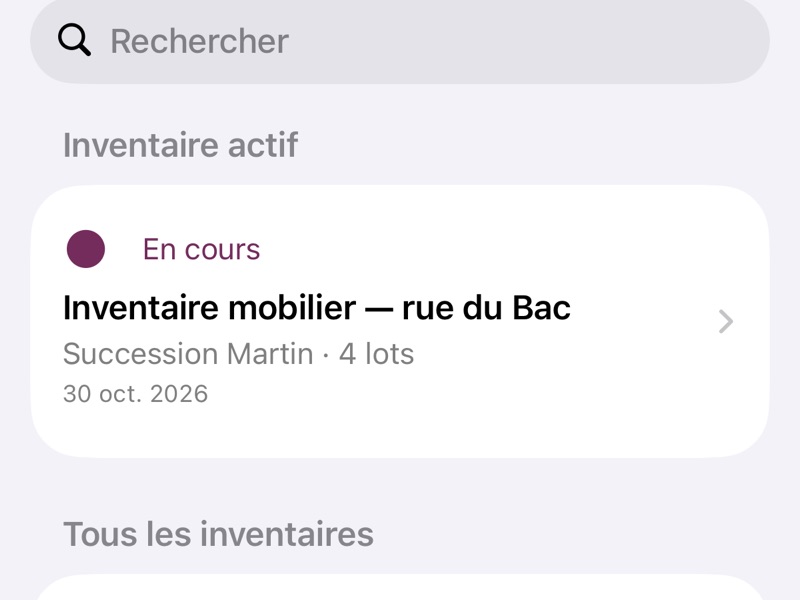
In the Inventaires (Inventories) tab, tap the inventory.
-
Tap Ajouter (Add) (+), then Rafale de lots en photo (Photo burst of lots). The first time, allow the camera.
-
Photograph the first lot from every angle: each press of the shutter (Prendre une photo, Take a photo) adds a view to the same lot. Tap Lot suivant (Next lot) to move on to the next lot.
-
After the last lot, tap Enregistrer (Save): the lots are sent to the firm. To correct the grouping, the descriptions or the sections first, tap Vérifier avant d’enregistrer (Check before saving).
-
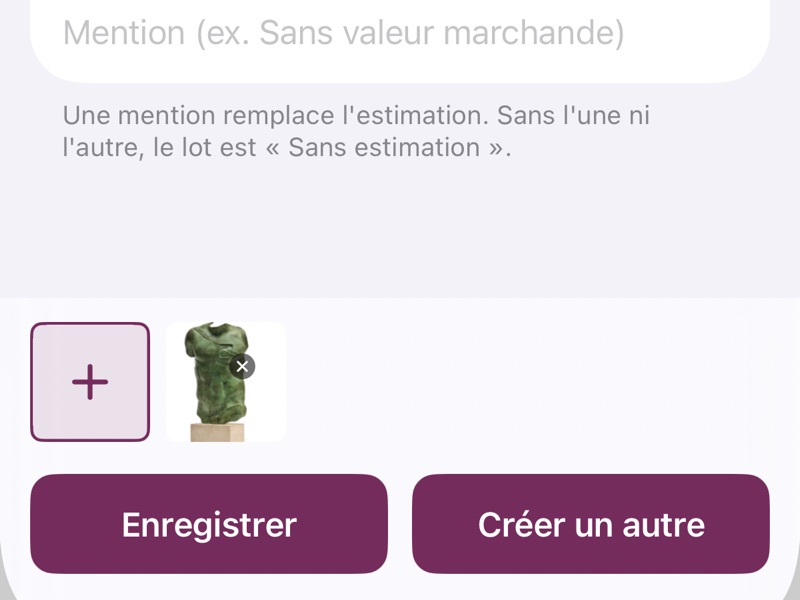
For a single lot, tap Ajouter (Add), then Lot individuel (Single lot). Tap Ajouter une photo (Add a photo) (+), then Choisir dans la bibliothèque (Choose from the library).
-
Enter the Désignation (Description) and the Estimation (Estimate), then tap Enregistrer (Save).
-
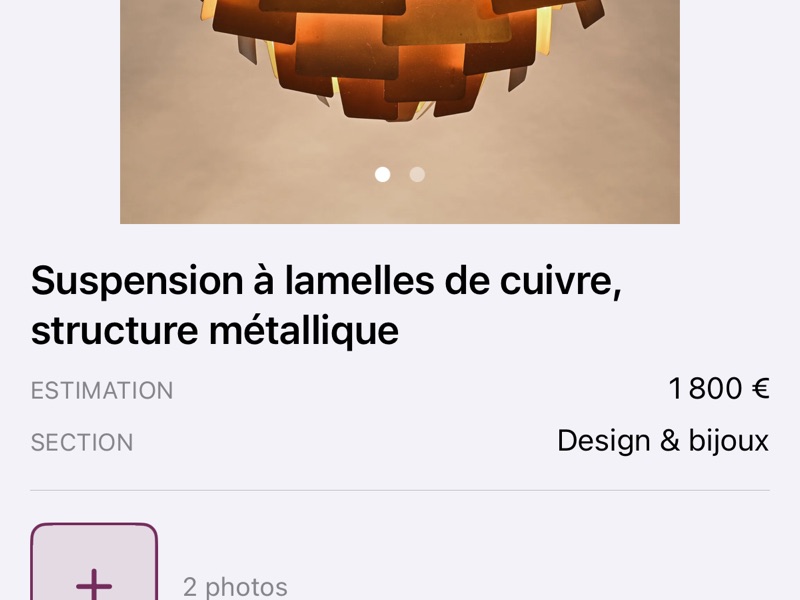
Tap a lot to review its details, then Modifier (Edit) to correct them.
If you get stuck
- The app says "Connexion requise pour photographier" (Connection required to take photos): get a connection back, then tap Rafale de lots en photo (Photo burst of lots) again.
- The app says the firm's storage is full: delete old photos or documents.
- Anything else: on iPhone, Compte › Signaler un problème (Account › Report a problem); on the web, choose Report a problem in your account menu.