Set up your firm and invite your colleagues
You get your firm, under its official name, and colleagues who work in it with you.
Before you start
- A Google or Apple account. Marto.AI does not use passwords.
- A web browser: your firm is created automatically at your first sign-in on the web.
Steps
-
On the Marto.AI website, choose Try it, then Continue with Google or Continue with Apple.
-
Read the terms of use, tick the box, then choose Accept and continue.
-
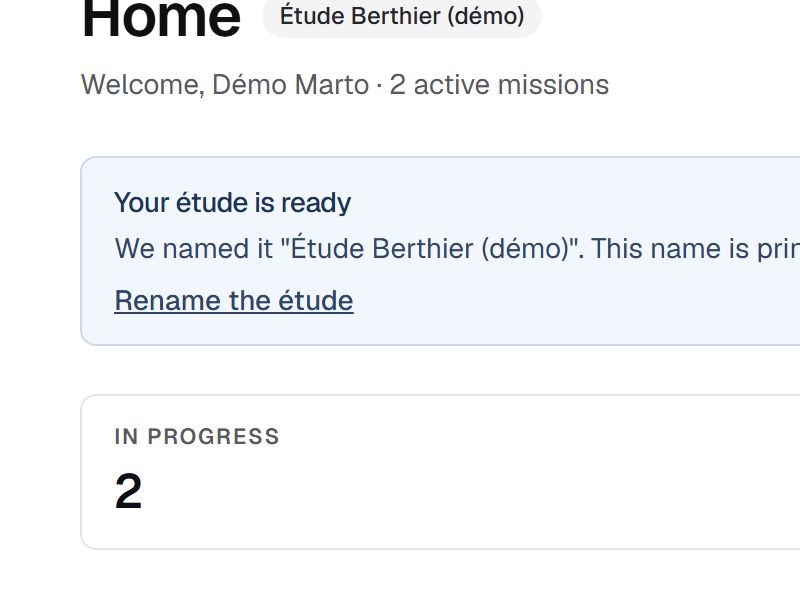
The Home page opens with the Your étude is ready banner: choose Rename the étude.
-
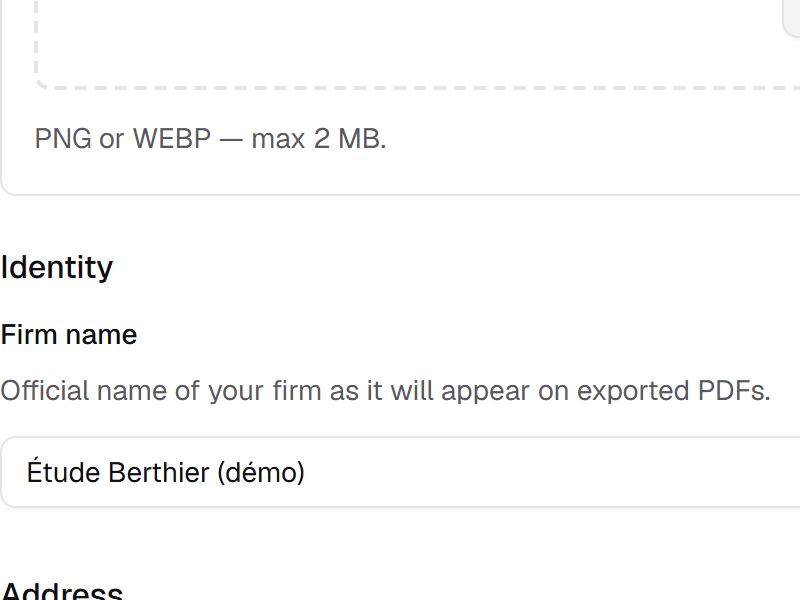
In the General tab, replace the Firm name with its official name, fill in the address, then choose Save.
-
Fill in the Legal and Jurisdiction tabs the same way.
-
In the Members tab, choose Generate invitation link, then Copy, and send the link. It works once and expires after 7 days.
-
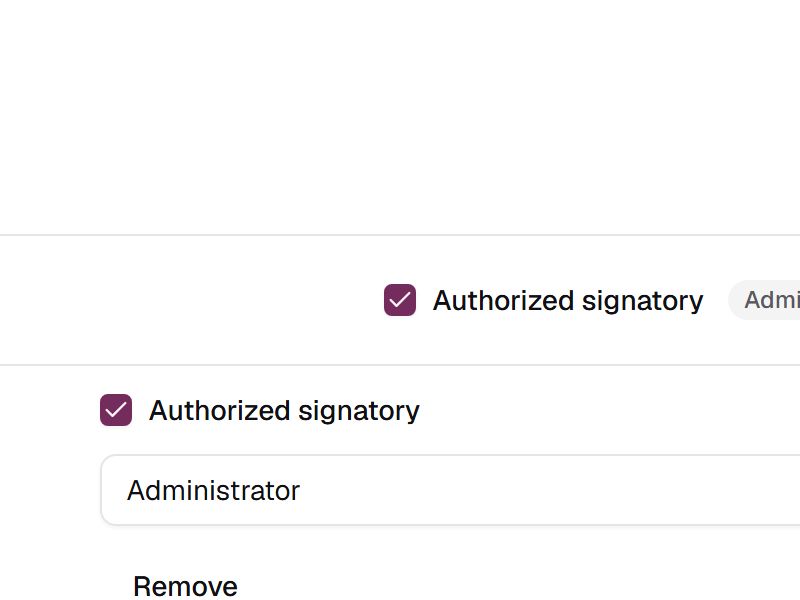
Once your colleague has joined, tick Authorized signatory on their row so they can sign inventory reports and constats. Tick yours too if you sign.
What you can do
You are the Administrator of the firm you create. Everyone you invite joins as a Member: they access all of its work and can invite others. Only an Administrator changes a role, removes a member, appoints an Authorized signatory and edits the Jurisdiction tab. Each signatory registers their signature in My account.
If something goes wrong
- The banner no longer shows: choose Firm settings in your account menu.
- A link has expired or was already used: generate another. A link sent to the wrong person is cancelled with Revoke.
- Anything else: on the web, choose Report a problem in your account menu; in the iPhone app, which is in French, Compte › Signaler un problème (Account › Report a problem).