Create an inventory and describe its lots
You get an inventory organised by section, in which each lot has its photos, its description and its estimate.
Before you start
- Access to a firm, on the web: every member of the firm can create an inventory.
Steps
-
From Home or Inventories, choose New inventory.
-
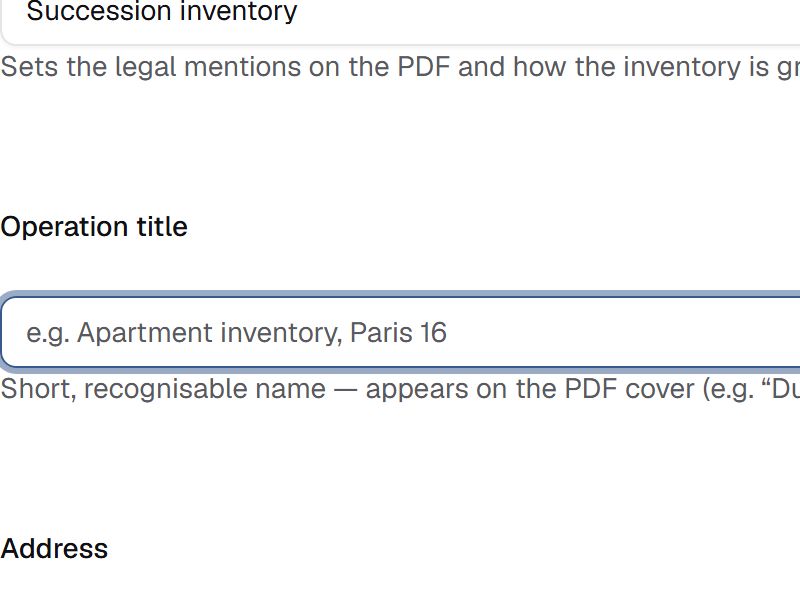
Enter the Operation title, the only field to fill in: the Operation type is already chosen and the Address is optional. Choose Create inventory operation.
-
On the inventory page, choose Link client, a client, then Confirm. If the client does not exist yet, choose Create a new client: it is linked once it is saved.
-
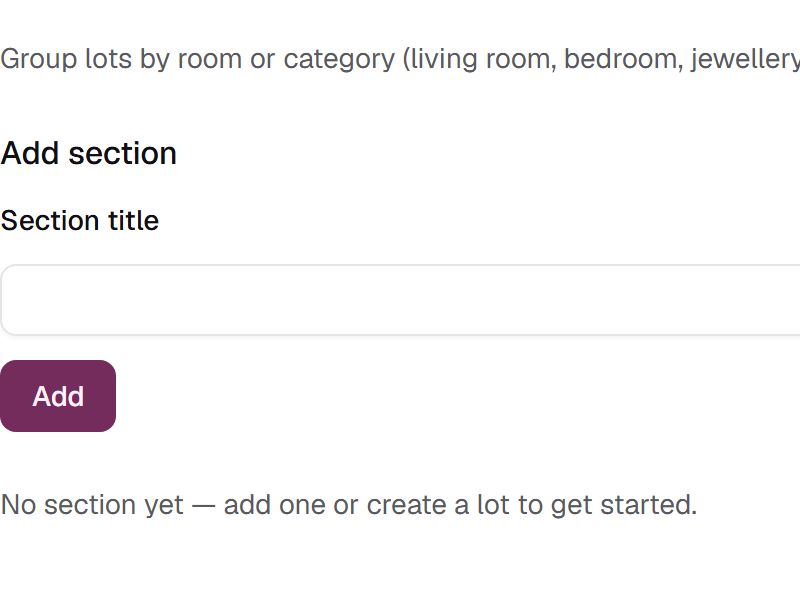
Under Add section, enter the Section title, a room for example, then choose Add.
-
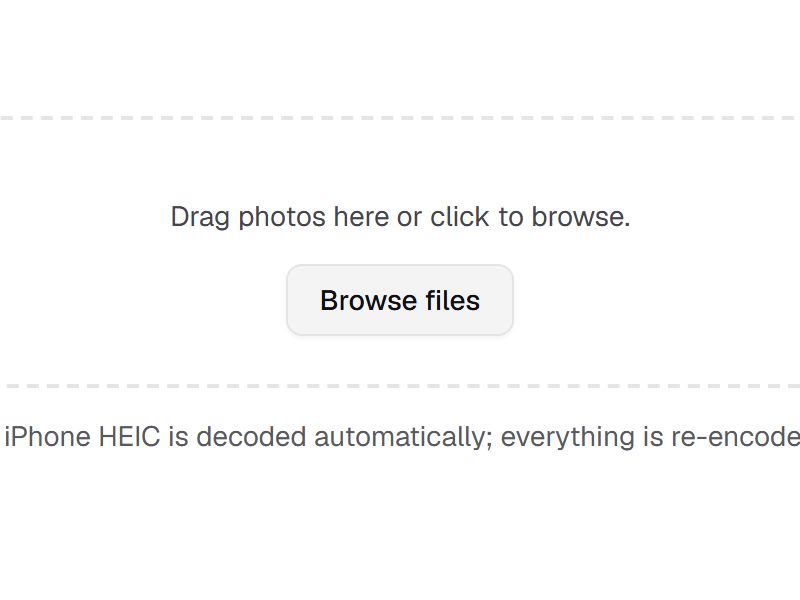
In the section, choose Add lot. Under Photo upload, drag its photos in or choose Browse files.
-
Write the Description: its first line becomes the lot title. Enter the Low estimate and the High estimate, then choose Create lot, or Save & add another to carry on.
-
To create several lots from your photos, choose Photo lots on the inventory page: drop them, group them into lots, describe each lot, then choose Create.
On iPhone, burst capture photographs the lots on site: the guide "Capture lots on iPhone" describes it.
If something goes wrong
- The lot's button says photos are uploading: wait until it reads Create lot again.
- The inventory is archived, its contents are frozen: in Settings, set the Status to In progress, then choose Save changes.
- Anything else: on the web, choose Report a problem in your account menu; in the iPhone app, which is in French, Compte › Signaler un problème (Account › Report a problem).