Sign and export the inventory report
You get the inventory report as a PDF, initialled on every page and signed, as well as the report in Word and the list of lots as a spreadsheet.
Before you start
- Be an Authorized signatory of the firm. An Administrator gives you this attribute on the Members screen.
- An inventory that contains its lots.
Steps
-
In your account menu, choose My account.
-
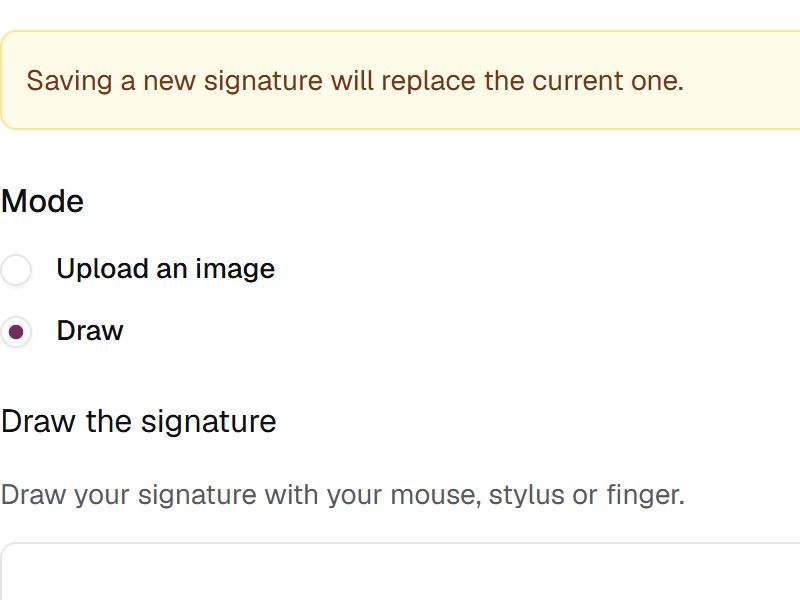
In My signature, choose Draw, draw your signature, then choose Save signature.
-
In My initials (paraphe), choose Draw, draw your initials, then choose Save initials.
-
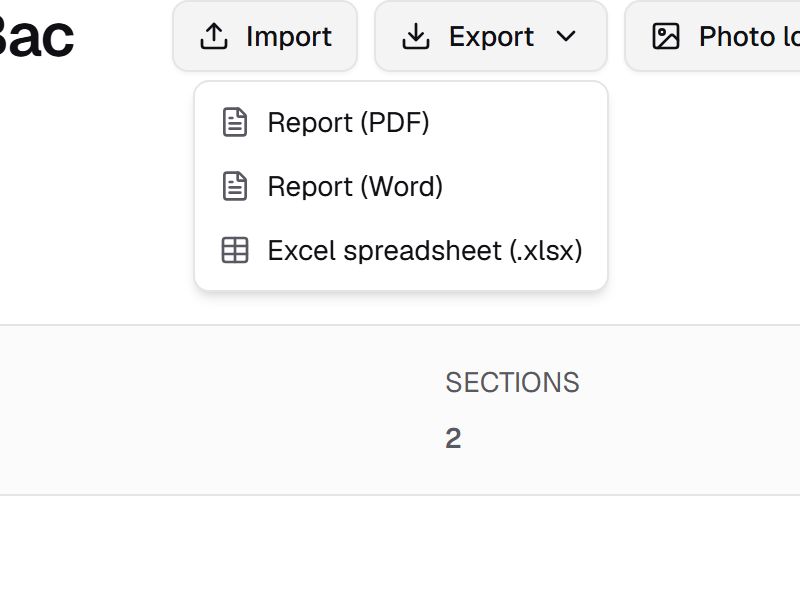
Open the inventory from Inventories, then choose Export › Report (PDF).
-
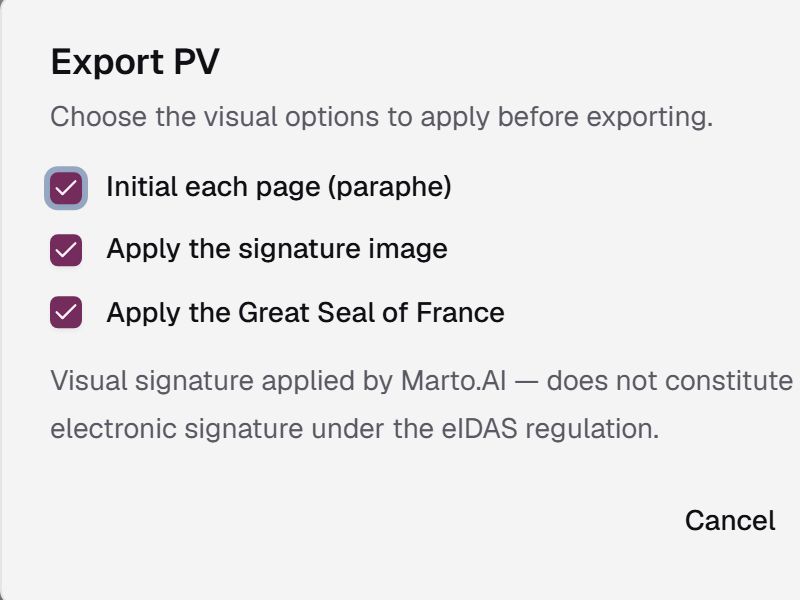
In Export PV, leave the options you want ticked: Initial each page (paraphe), Apply the signature image and, if the box is shown, Apply the Great Seal of France.
-
Choose Export. The report opens in a new tab, from which you save it; on a phone, it downloads. Each lot appears with its main photo.
-
For the list of lots, choose Export › Excel spreadsheet (.xlsx), or Report (Word) for the report in Word, without initials or signature. The file downloads.
If something goes wrong
- The My signature section shows Not an authorized signatory: ask an Administrator of the firm to make you an Authorized signatory. Until then, Export PV shows no boxes and produces a draft, without initials or signature.
- A box is greyed out in Export PV: choose Set up my initials or Configure my signature, then start again from step 2.
- Anything else: on the web, choose Report a problem in your account menu; in the iPhone app, which is in French, Compte › Signaler un problème (Account › Report a problem).